

Updating Tax Forms
A comprehensive overview of how to update 1099 forms within Wingspan
Overview of the Update Process
Starting on Monday, January 4, 2027, you can generate and update tax forms within Wingspan.
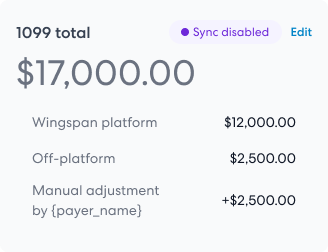
Any manual edit moves the form into a 'Sync disabled' status, disabling automatic updates from the contractor profile (including taxpayer information or payables).
All manual adjustments are visible to teammates within the organization who have access to the contractor.
Types of Adjustments
Three primary adjustments are available:
- Adjust the Amount: Modify the reportable amount on the selected NEC or MISC Box 6 form.
- Edit Contractor Information: Update TIN, name, address, etc., on the 1099.
- Update the Status: Change the 1099 status (e.g., Ready, Action required), separate from the 'Sync disabled' status.
When Should You Update Tax Forms?
Updating tax forms is necessary in various situations, including:
-
Adding Missing Information: In cases where essential data that is synced with the contractor profile is not correct for filing, you can manually overwrite it. (Otherwise, if a paper W-9 is provided by a contractor, you can enter this data into Wingspan on the contractor profile and have it synced with the tax form.)
-
Inclusion or Exclusion of Forms: Depending on the specifics of your business, you might need to file certain 1099 tax forms that Wingspan includes by default or opt out of filing 1099s that are not relevant to your operations. For example, corporate healthcare recipients can require MISC Box 6 reporting. Check the selected form type before changing eligibility. Keep in mind, Wingspan does not offer tax advice, so consulting a tax advisor is recommended.
-
Correcting Errors: Should you find an error in a 1099 form, such as an incorrect amount, you have the option to modify it to accurately represent the reportable payments.
Be aware that any changes you make will be accessible to all team members who have permission to view the 1099 contractor's details.
Detailed Procedures
Adjusting the Amount on a Tax Form
Before altering the amount on a tax form, confirm you have permissions to access all the contractor's tax forms. Lack of sufficient permissions might result in missing forms that reflect payments from other entities to the contractor, leading to an inaccurate correction.
To update the amount, be aware that this action will be visible as a manual adjustment to both your teammates and the contractor. The new total on the tax form is a combination of the sum of payables paid to the contractor (as per your calculation settings) and your manual adjustment. Note that the amount that appears on the tax form comprises payables processed through Wingspan or those uploaded by an administrator off-platform, depending on your calculation settings.
Workflow:
-
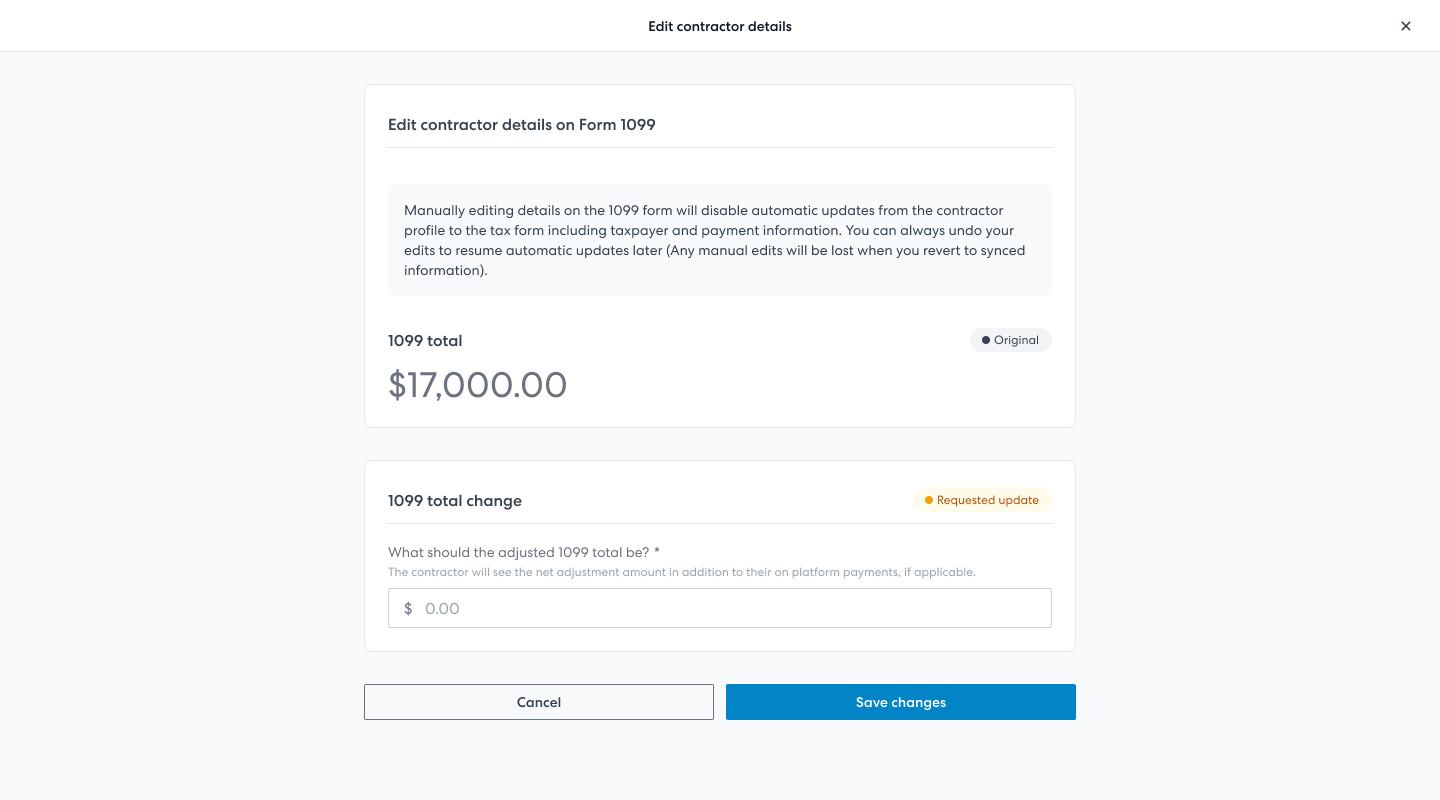
Click the 'Amount' field in the header of a Tax Form.
-
Enter the new amount. This is the total amount that will be displayed on the 1099 form, not a net adjustment.
-
Click 'Save changes' to apply the adjustment.
Constraints:
- It's not possible to update the amount to $0. If you decide not to file the 1099, change its status to 'Excluded'.
- Any adjustment you make will overwrite adjustments previously made by your teammates.
Editing the Contractor Information
Editing the contractor information allows you to update the address, name, or Taxpayer Identification Number that will appear on the 1099. Any edits to contractor information will be accessible to the email address associated with the contractor. Confirm that you are editing the correct recipient.
Workflow:
-
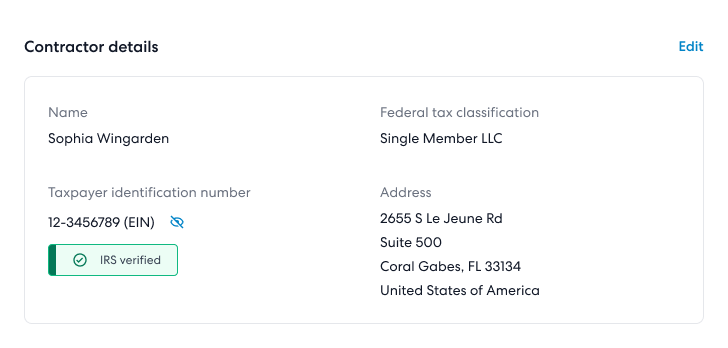
Select ‘Edit’ adjacent to 'Contractor details'.
-
Modify the tax information as needed. This includes changes to the business name, tax classification, address, and taxpayer identification number (TIN).
- Be aware that editing the TIN or name triggers an immediate verification with the IRS and may result in fees.
-
Click 'Save' to finalize the changes.
Updating the Status on a Tax Form
You can manually override the status set by Wingspan for a tax form that has not been submitted to the IRS. For an accepted form, use the correction workflow.
Workflow
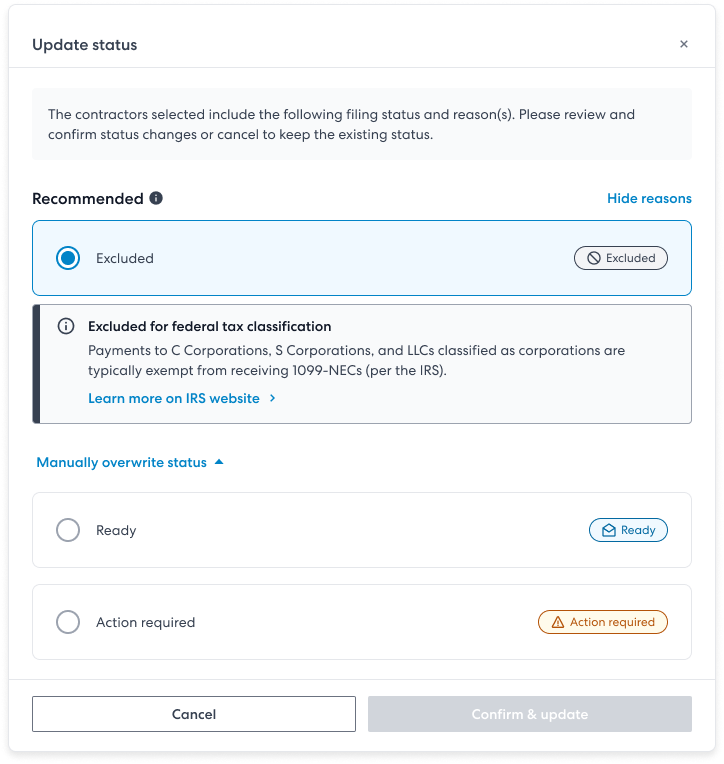
- Click "Filing status" in the tax form header.
- Select the updated status, and click "Confirm."
To learn more about 1099 statuses, please review this document: Understanding 1099 Statuses
Allowed Status Updates
Overriding to "Ready" Status
You may set a Tax Form to the "Ready" status if:
- The current status is either "Action required" or "Excluded".
- All required information (e.g., TIN, name, address, and amount) is complete (mandatory information details).
- The amount is not $0.
- The contractor is a US Person.
Important Note About TIN/Name MismatchesWhile you can override a tax form to "Ready" status even if there is a TIN/name mismatch flagged by the IRS verification system, please be aware that this may result in receiving a CP2100 or CP2100A notice (also known as a "B-Notice") from the IRS. These notices are issued when the IRS identifies a discrepancy between the name and Taxpayer Identification Number (TIN) reported on the 1099 form. Wingspan is not responsible for any B-Notices received by payers. The payer assumes full responsibility for any penalties or follow-up actions required by the IRS in these cases.
Overriding to "Excluded" Status
You can set a Tax Form to the "Excluded" status if the current status is either "Ready" or "Action required".
A notice will appear on the tax form stating: "Manually excluded by {{name}} on {{date}}."
Overriding to "Action required" Status
You can set a Tax Form to the "Action required" status if the current status is either "Ready" or "Excluded".
Upon updating, a notice will be displayed on the tax form: "Status manually updated to 'Action required' by {{name}} on {{date}}."
Reverting Tax Form Updates
Manual updates made to a Tax Form can be reversed at any time. Reverting changes will restore the tax form to its initial state, based on the existing data in Wingspan concerning the amount, status, and contractor information.
- Amount: The amount will be recalculated using your calculation settings from the payables in Wingspan.
- Contractor Information: This will revert to the information provided by the contractor on file or the data batch uploaded by your team. Contractor information on 1099 forms.
- Status: The status will be recalculated based on the amount and contractor information.
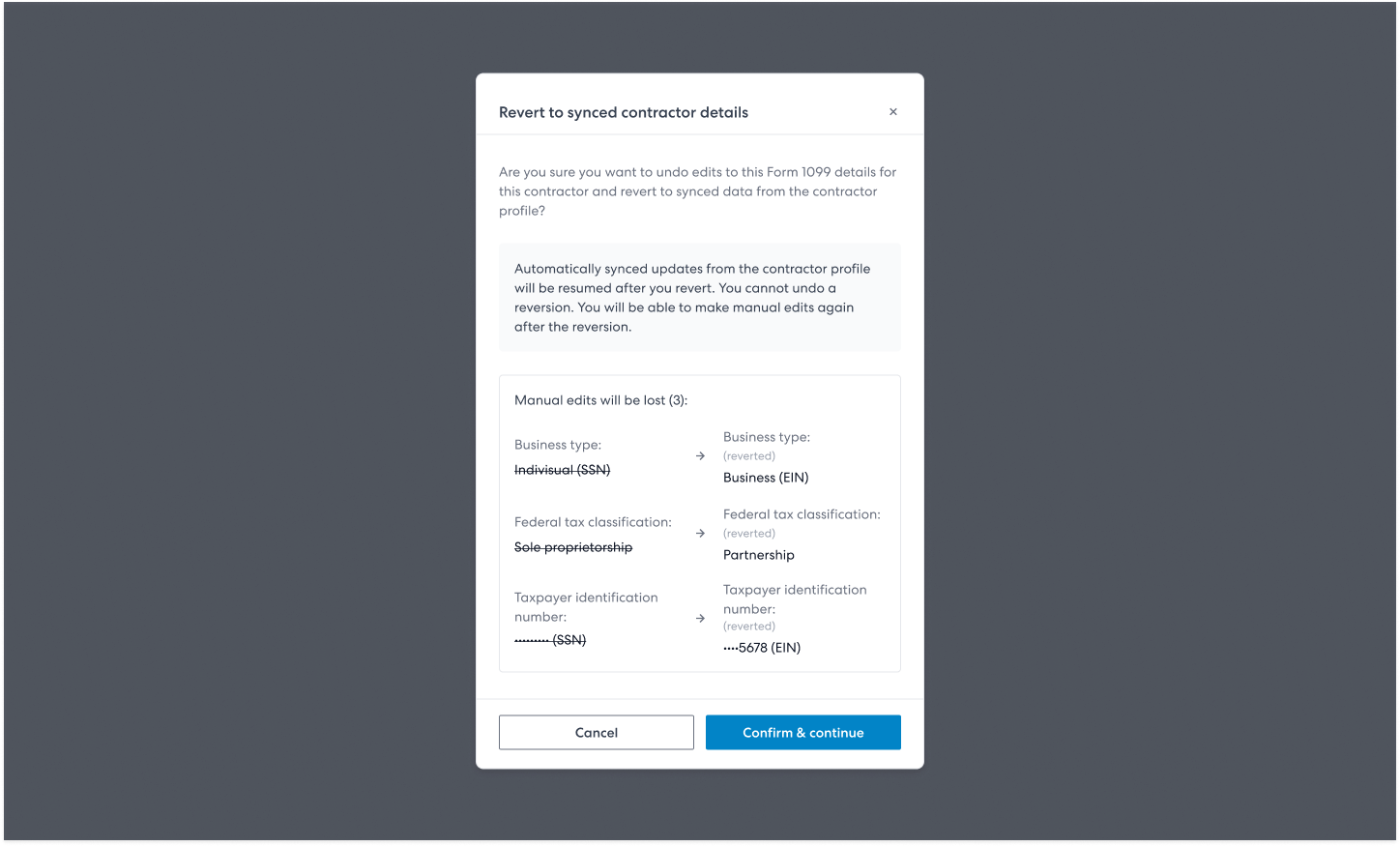
Ensure that no vital information will be lost before reverting. Post-reversion, you can modify the amount, status, or contractor information again.
Reviewing Contractor Changes to the Tax Form
In cases where the tax form is in the 'Overwritten' sync state and the contractor updates their tax profile, the following notification will appear:
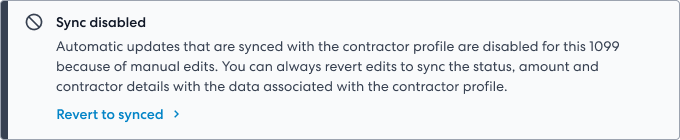
You can revert edits to recalculate the status, amount, and contractor details to be synced with the contractor profile.
Upon receiving this notification, you can either revert to the original data from the contractor or maintain your updated information and file accordingly. The final content of the 1099 form is at your discretion as the payer.
Disallowed Updates
Certain updates are not permitted:
- Identifiers: Changes to email addresses are not allowed once a contractor has signed up. Ensure accuracy upon import.
- Form Merging: Wingspan does not support merging of tax forms.
- Excluded for Non-U.S. person: This type of exclusion cannot be overwritten.
Understanding mid-year tax information changes
If a contractor used more than one tax identity during the year, review the effective date and payment amounts for each identity with your tax advisor. See Split Tax Forms for the existing manual procedure. Review each form's amount, identity and status before filing; use corrections for accepted filings.
Updated 2 days ago